Head to pigeon.app/register and create a free account. The Starter plan includes everything you need to try Pigeon — you'll be able to create up to 3 guides and run unlimited live sessions with them.
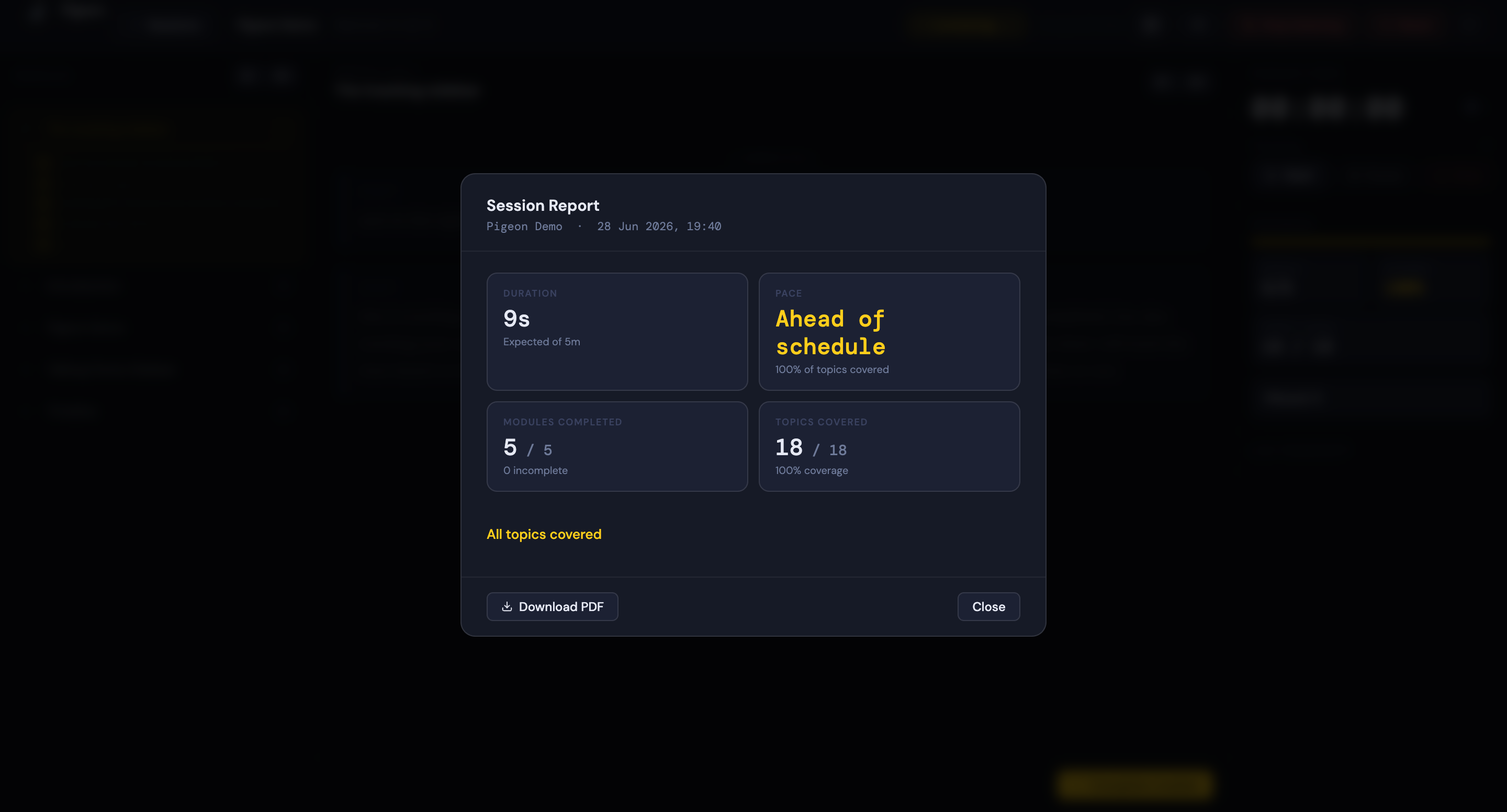
Once registered, you'll land on your Sessions dashboard. This is your home base — all your guides and past session history live here.
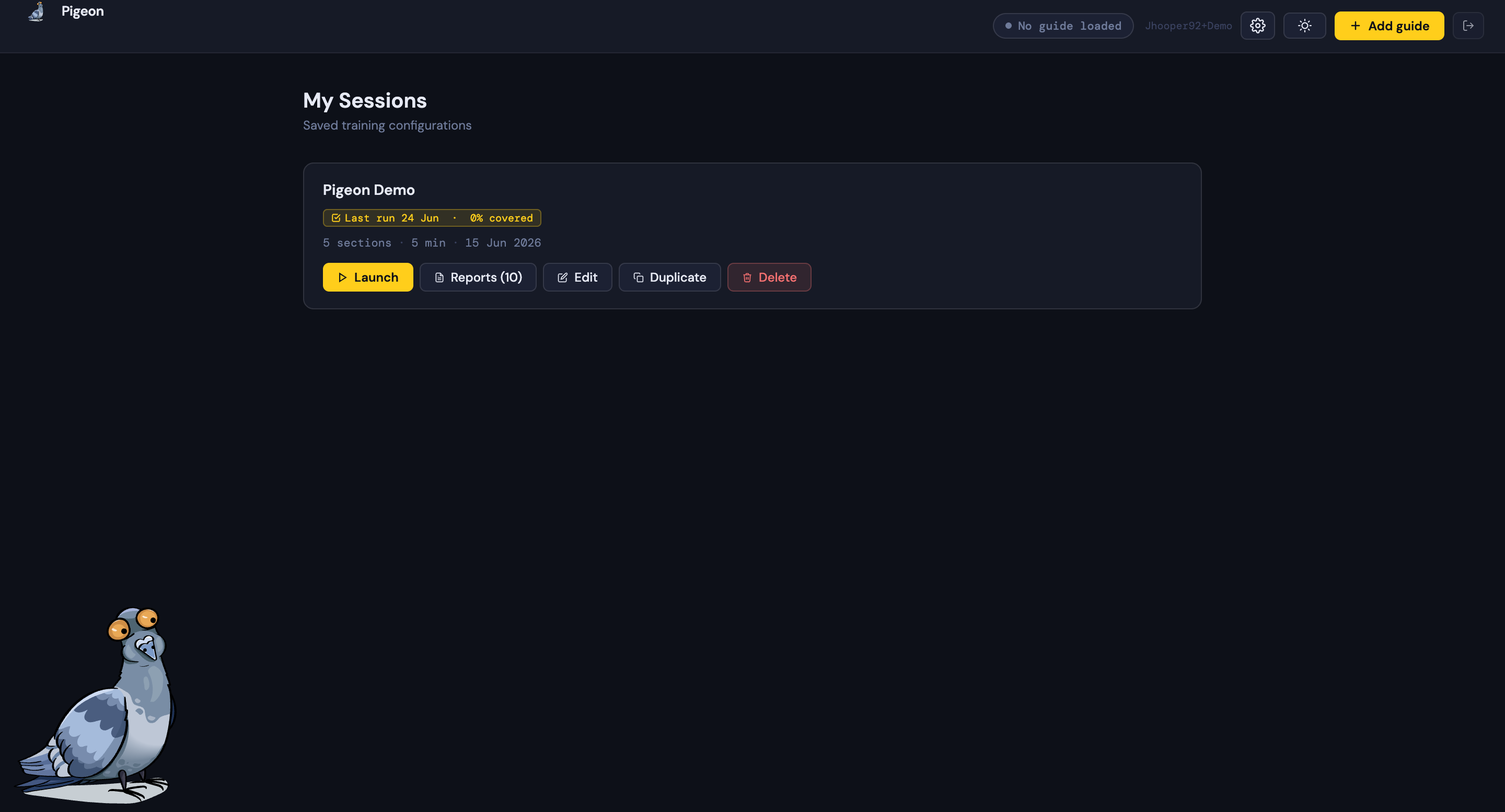
Pigeon uses your own AI API key — this keeps your content private and your costs transparent. Open Settings (the cog icon in the top-right corner), then go to the AI Provider section.
Choose your preferred provider and paste in your API key:
- Google Gemini — get a key at aistudio.google.com (free tier available)
- Anthropic Claude — get a key at console.anthropic.com
- OpenAI ChatGPT — get a key at platform.openai.com
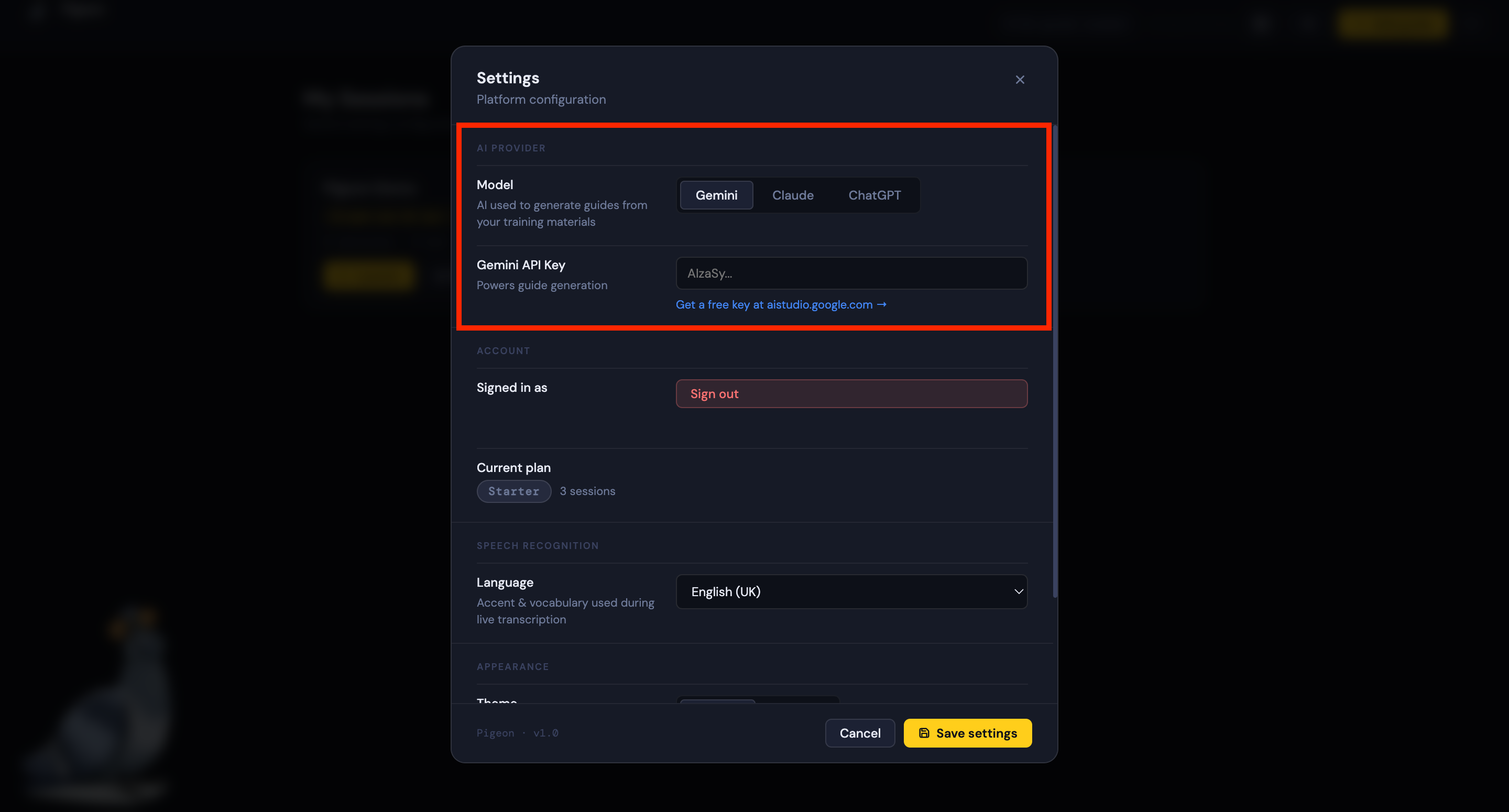
Click the + New guide button in the left sidebar. You'll have three ways to build it:
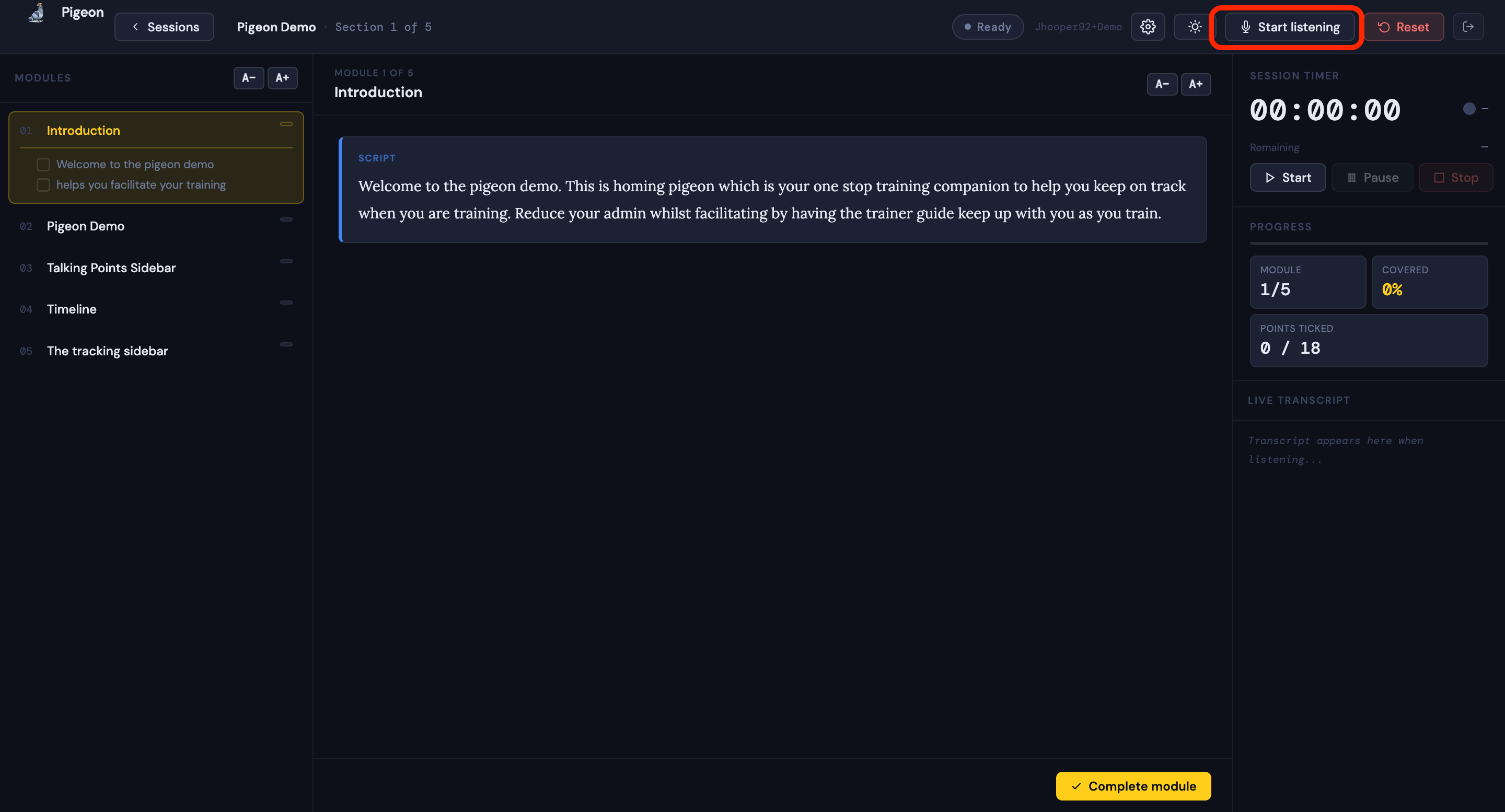
Open a guide and click Start session. Pigeon will enter live mode and begin listening via your microphone.
As you speak, words from your guide are highlighted as they're detected — giving you a real-time visual of how closely you're following your script. Use the left/right arrows (or keyboard shortcuts) to move between sections manually if needed.
- The centre panel shows the current section content with live word highlighting
- The left sidebar shows your section list so you can see where you are overall
- Pigeon auto-advances to the next section when enough words are matched
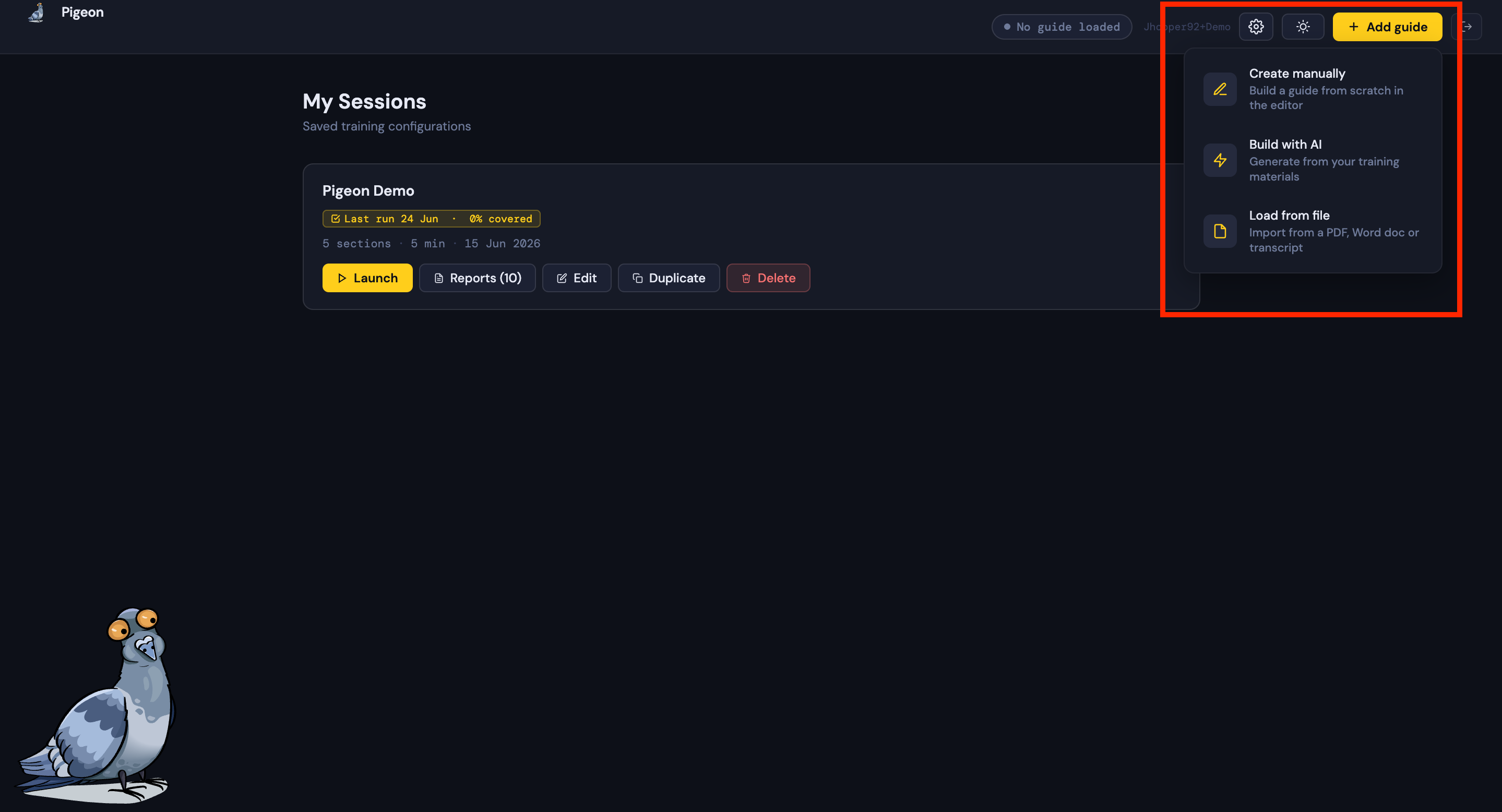
When you end a session, Pigeon saves a report automatically. You can access it from your Sessions list in the sidebar — past sessions are shown under each guide.
Each report includes:
- How long the session ran
- Which sections were covered and in what order
- Word coverage — how much of your scripted content you actually spoke
- Any sections that were skipped
Over time these reports help you spot patterns — sections you consistently rush, content you drift from, or topics where your delivery is strongest.